Sometimes Japanese games, particularly PC visual novels, won’t work on computers using other (non-Japanese) languages. Or, they may run but show text incorrectly (even if you’re using a translation patch). You may be able to change the region depending on your version of Windows, but this causes its own issues. Locale Emulator can almost always solve this problem for you.
This guide will show you not only how to install and use Locale Emulator, but how to use another piece of software to quickly create shortcuts that automatically launch the game with Locale Emulator.
If you want to pick up some Japanese games and visual novels, using ZenMarket, who have kindly sponsored this article, is a convenient way to do this. They’re an import service that focuses on helping to order items from Japan, consolidating packages to keep the delivery costs down, and sending items worldwide. We’ve given an overview of our experience with their service and how to use it in a previous article.

Installing Locale Emulator
The first thing to do is to download and install the program. You can find download links on the Locale Emulator page, or directly download it from GitHub.
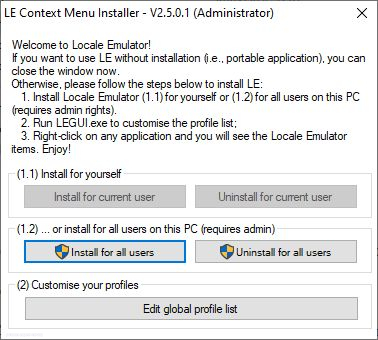
You’ll have a file called Locale.Emulator.2.5.0.1.zip. Extract this into a folder then do the following steps:
- Save the Locale Emulator Folder where you want it installed. For example: C:\Program Files\Locale.Emulator.2.5.0.1 (It’s recommended to not leave it in your Downloads folder).
- Run LEInstaller.exe (You may need to right-click and Run as Administrator)
- Choose to Install for all users
- Click to Edit Global Profile List.
- If not already selected by default, Select ‘Run in Japanese’, ‘Japanese (Japan) and all the checkboxes except for ‘Create process with CREATE_SUSPENDED’, then click Save.
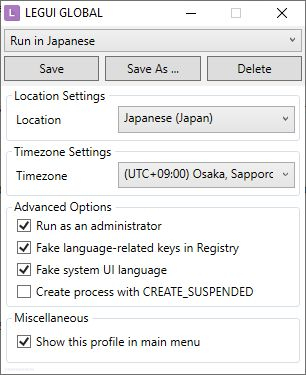
That’s it. Locale Emulator is now installed. You can change settings again with LEGUI.exe if needed.
You can leave it at that, but the next step will make life easier.
Download LEShortcutCreator. You will need the file on this page called LEShortcutCreator.cmd.
Save this file somewhere where you’ll remember it, such as in the same folder as Locale Emulator. You may wish to create a shortcut to the Desktop if you will use it often.
Using Locale Emulator
Now that you have Locale Emulator and the LEShortcutCreator, you can easily run most Japanese games. As this is most often used for visual novels, we’ll use one in this example.
I installed the visual novel Time Paladin Sakura, which I imported via Zenmarket. Trying to launch this by clicking TPSK1.exe, I get an error message saying “TPSK1″,õ쬂ł«‚Ü‚1‚ñ‚Å‚μ‚1⁄2 3.p.-ƒCƒ”ƒXƒg[ƒ<μ‚Ä‚‚3⁄4‚3‚¢”, which isn’t particularly informative.
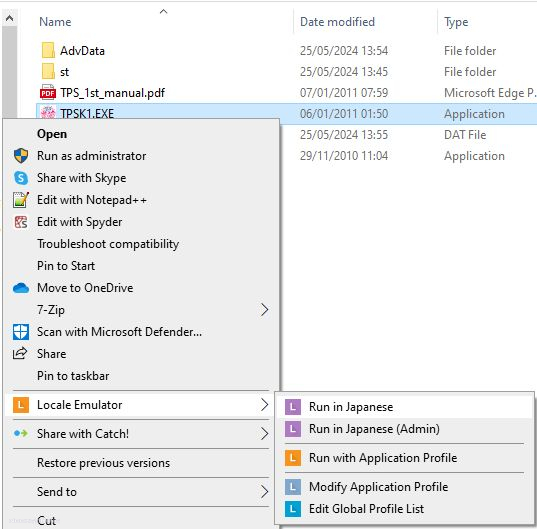
If I right-click, I can now choose “Locale Emulator” in the menu. I then choose “Run in Japanese”. It asks me if I want to run LEProx.exe and when I say yes, it runs the game without any issues.
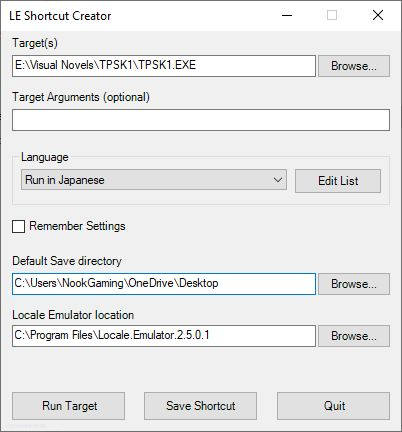
This is fine if I want to open the visual novel occasionally, but what if I’ll be reading it often? This is where LEShortcutCreator comes in.
- Open up LEShortcutCreator.cmd.
- Choose the .exe of the program you wish to make a shortcut to (TPSK1.exe in this example).
- Choose the Default Save directory (where you would like the shortcut). This will be the Desktop by default.
- If not autodetected, select the Locale Emulator location.
- Click “Save Shortcut”
- Click “Save” when the save dialog appears
That will then create a shortcut that opens the visual novel or other program with Japanese Locale when you click it. There’s no need to right-click and select from menus anymore.
It is worth noting that when the shortcut is created, no confirmation dialog appears.
When Might This Work?
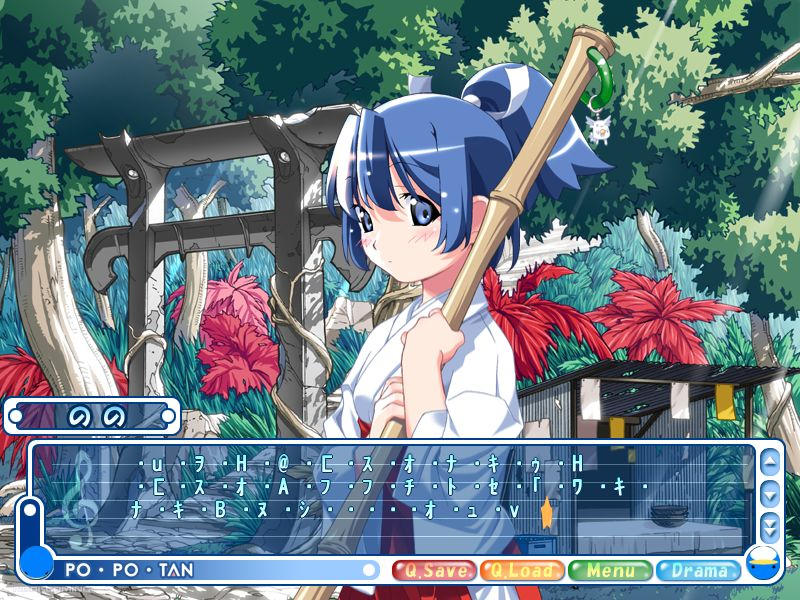
This works for most Japanese visual novels and other games if they don’t launch as expected on a Windows PC using non-Japanese languages. If the game doesn’t launch, launches with an error message, or shows unusual characters or odd spacing (including with certain translation patches), then give this a try. Other rarer errors can also occur.
What If This Doesn’t Work?
You can try to change your system locale. This will vary based on your version of Windows, so we would recommend checking a guide for your specific version. You will need to restart your PC after changing.
Please do note that this will also change your keyboard layout and you may come across issues such as \ changing to ¥. It can also cause issues with certain software, including ones related to security and banking. This is one reason why it’s preferable to use Locale Emulator to run visual novels and other games where possible.
If this doesn’t work, the issue may be unrelated to locale. For example, certain versions of Comic Party won’t run on recent versions of Windows at all, even with compatibility adjustments. Other methods such as using a virtual machine with a Japanese version of Windows XP might be needed for certain old titles.
How About Running Japanese Visual Novels on Steam Deck?
Adding the game as a non-Steam game, choosing properties and adding LANG=ja_JP.UTF-8 %command% to the game’s launch options may solve this in some cases.
Moogul has created a video covering how to run Japanese visual novels on Steam Deck in detail. For further information, check it out here.
Thanks again go to ZenMarket for sponsoring this article. If you’d like to import any goods from Japan, please consider checking out their service and don’t forget to use code NOOKGAMING when signing up for 800 Yen worth of ZenPoints toward delivery.
If you are looking for more posts about visual novels, you may enjoy our post on Visual Novel Characters You Wish You Could Romance (But Can’t!) We have also covered a wide variety of visual novels both original to English and localized from Japanese, which you can check out here.

A gamer since the days of Amstrad and DOS and someone who has dabbled in a variety of professions. He enjoys a wide variety of genres, but has been focusing on visual novels and virtual reality in recent years. Head Editor of NookGaming. Follow him and the website on @NookSite.